Found a beautiful coloring page on your phone but can’t figure out how to print it without using a computer?
Many printable designs look perfect on your screen, yet downloading the wrong file or choosing incorrect settings can ruin the printed version.
Fortunately, both Android phones and iPhones offer convenient printing options, so you don’t need special equipment beyond a compatible printer.
In this article, you’ll learn how to download coloring pages, print them from your phone, and fix common printing problems.
Can You Print Coloring Pages Directly From Your Phone?
Yes, you can print coloring pages straight from your smartphone using a compatible wireless printer, without transferring files to a computer.
Most modern Android phones and iPhones support mobile printing, although the available options depend on your printer and phone model.
Open your downloaded coloring page, find the printing option, and select your printer before adjusting the paper size and layout settings.
For a smoother experience, check your printer connection and preview the design first, especially when printing detailed illustrations or multiple pages.
How to Download Coloring Pages on Your Phone?
Start by opening a website that offers printable coloring pages, then look for its download button or original printable file.
Choose a PDF whenever available because properly prepared PDFs usually preserve the intended page layout and sharp outlines during printing.
Screenshots can work for simple pictures, but they often contain lower-resolution artwork, unwanted borders, or other elements from your phone screen.
After downloading, open the file to check its quality and save it somewhere easy to find, such as your Downloads folder.
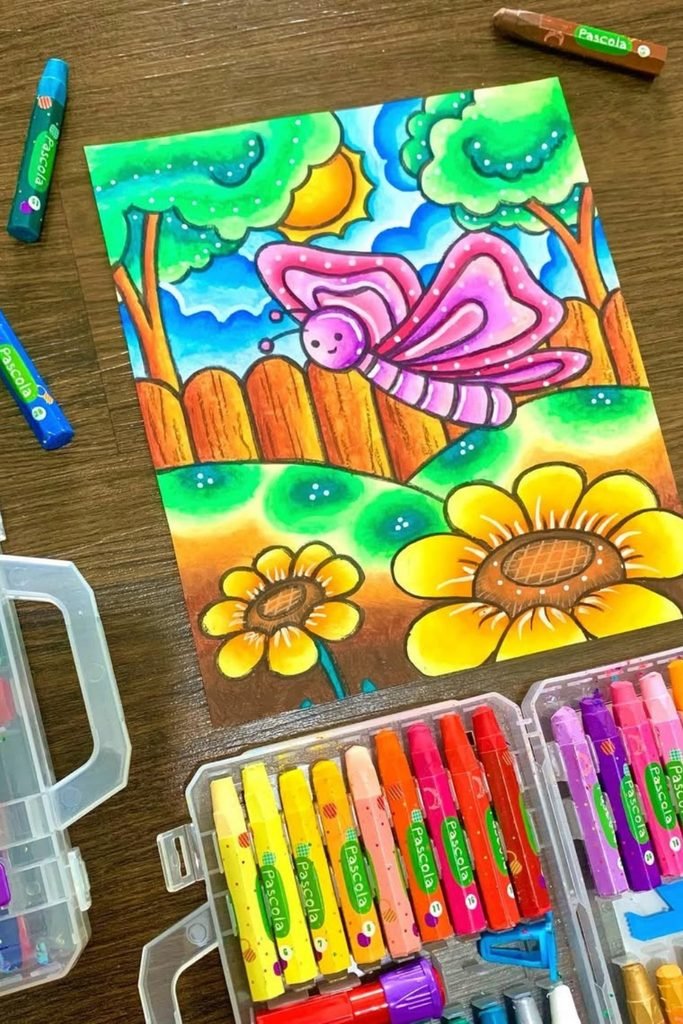
How to Print From an Android Phone?
Open your downloaded coloring page in Google Files, Photos, or another app that supports printing images and PDF documents directly.
Tap the menu or share icon, find the Print option, and choose your available printer from the device selection list.
Check your paper size, orientation, and number of copies before reviewing the preview to make sure the design fits correctly.
If no printer appears, check your phone’s printing settings or install the manufacturer’s printing app, then try connecting the devices again.
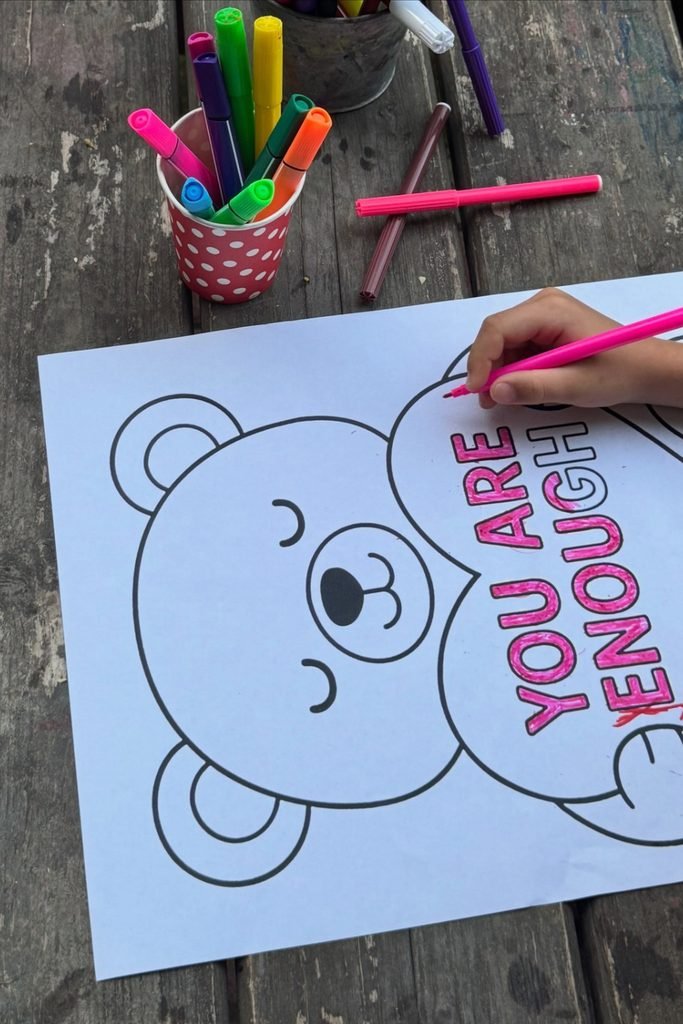
Print From an iPhone
If your printer supports AirPrint, you can print coloring pages directly from your iPhone without installing additional printing software or apps.
Open the downloaded image or PDF in Photos, Files, or another supported app, then tap the Share button to find Print.
Select your AirPrint printer, choose the number of copies, and review the available printing options before sending your page to print.
If your printer isn’t listed, check that both devices use the same Wi-Fi network or try the printer manufacturer’s official app.
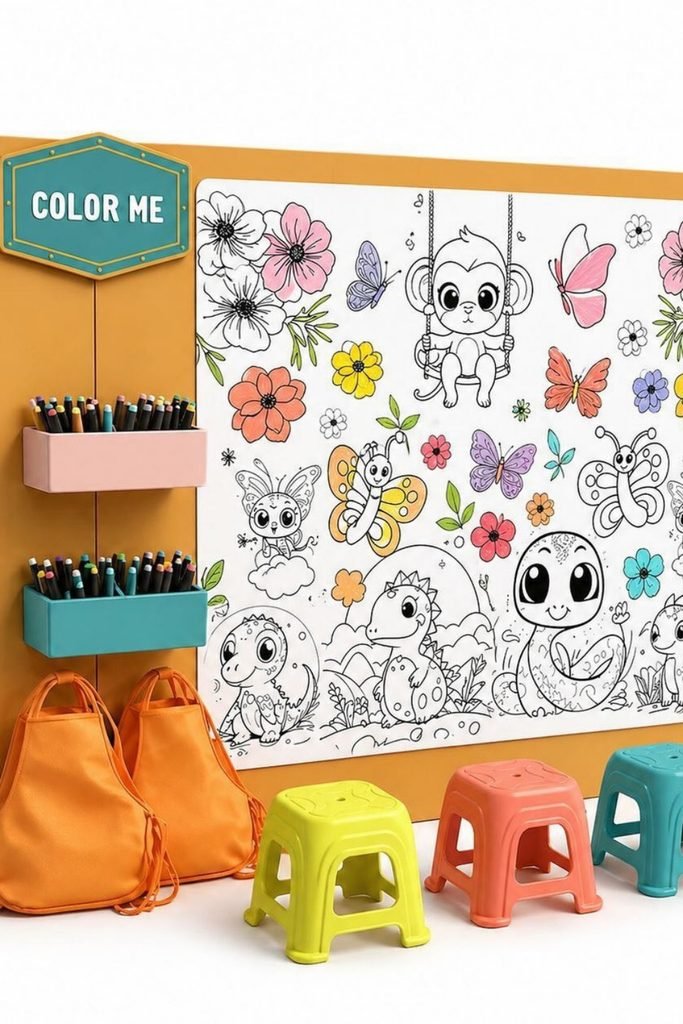
Print From Pinterest on Your Phone
Pinterest is full of printable coloring ideas, but images displayed inside pins aren’t always suitable for producing sharp, full-size prints.
Instead of saving a screenshot, open the pin’s original website link and look for a downloadable PDF or high-resolution image.
Once the file is saved, open it through your phone’s file manager or PDF viewer and select the available printing option.
Always check the preview before printing, since some Pinterest images contain borders, watermarks, or layouts that weren’t designed for printing.
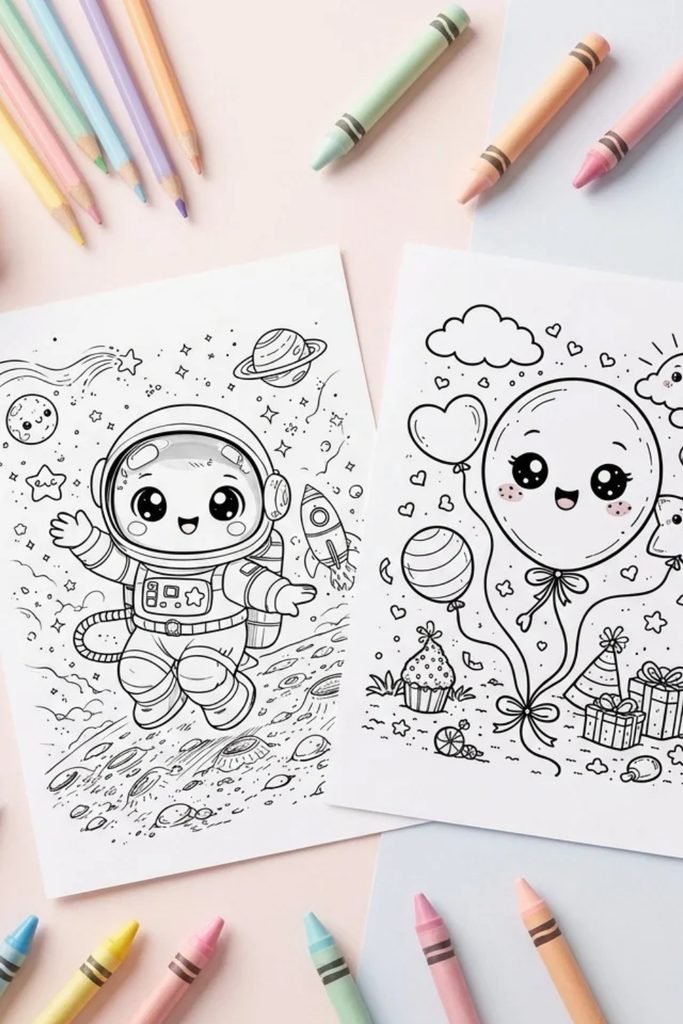
Print PDF From Your Phone
PDF files are convenient for printable coloring sheets because they can preserve page dimensions and sharp outlines when prepared correctly.
Find your downloaded PDF in the Files or Downloads app, then open it using a viewer that supports your phone’s printing features.
Choose Print from the available menu, select your printer, and check the page range if your document contains several coloring designs.
Before confirming, review the preview and paper size to prevent important details from being cropped or printed outside the margins.
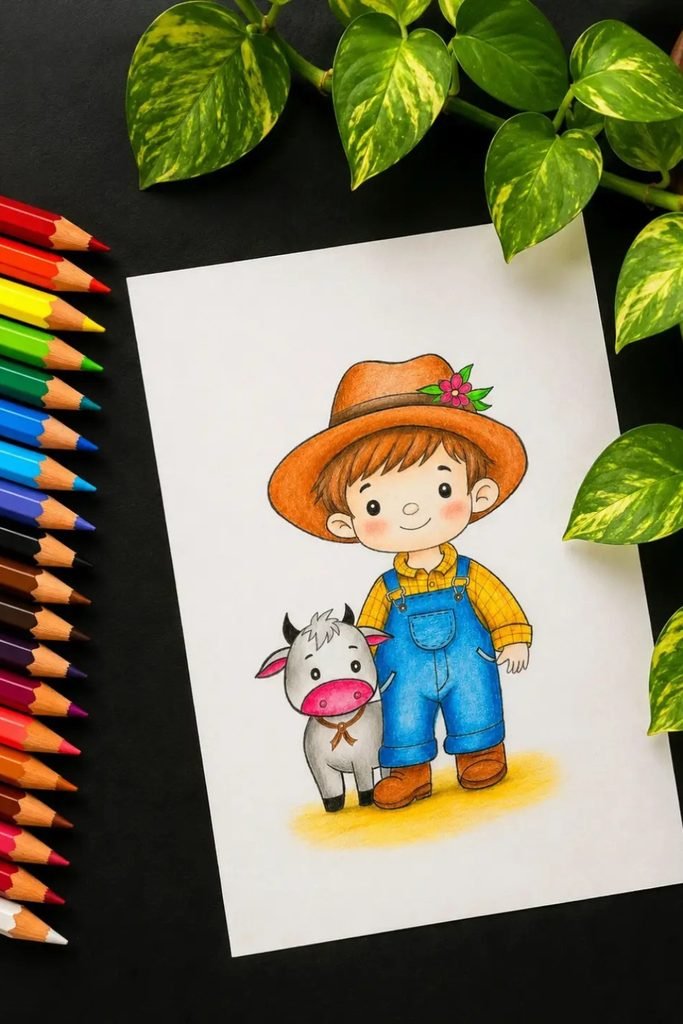
Best Printer Settings for Clear Coloring Pages
| Printer Setting | Recommended Option | Why It Matters |
|---|---|---|
| Paper Size | A4 or US Letter | Matches your actual printing paper |
| Color Mode | Black and White | Keeps outlines clear and saves color ink |
| Print Quality | Normal or High | Helps produce sharper outlines |
| Page Scaling | Fit to Page | Helps prevent artwork from getting cropped |
| Orientation | Portrait or Landscape | Matches the coloring page layout |
| Copies | 1 for testing | Prevents wasting paper and ink |
| Paper Type | Match loaded paper | Helps the printer use suitable settings |
What Paper Is Best for Printed Coloring Pages?
Regular printer paper works well for everyday coloring activities, especially when children use crayons or colored pencils on simple printable designs.
For a sturdier sheet, consider premium printer paper around 100–120 GSM, provided your printer supports the chosen paper weight.
Alcohol markers often need specially designed marker paper because ordinary thick sheets may still allow ink to bleed through.
If you’re preparing watercolor activities, choose suitable watercolor paper and confirm that your printer can safely handle its thickness and surface.
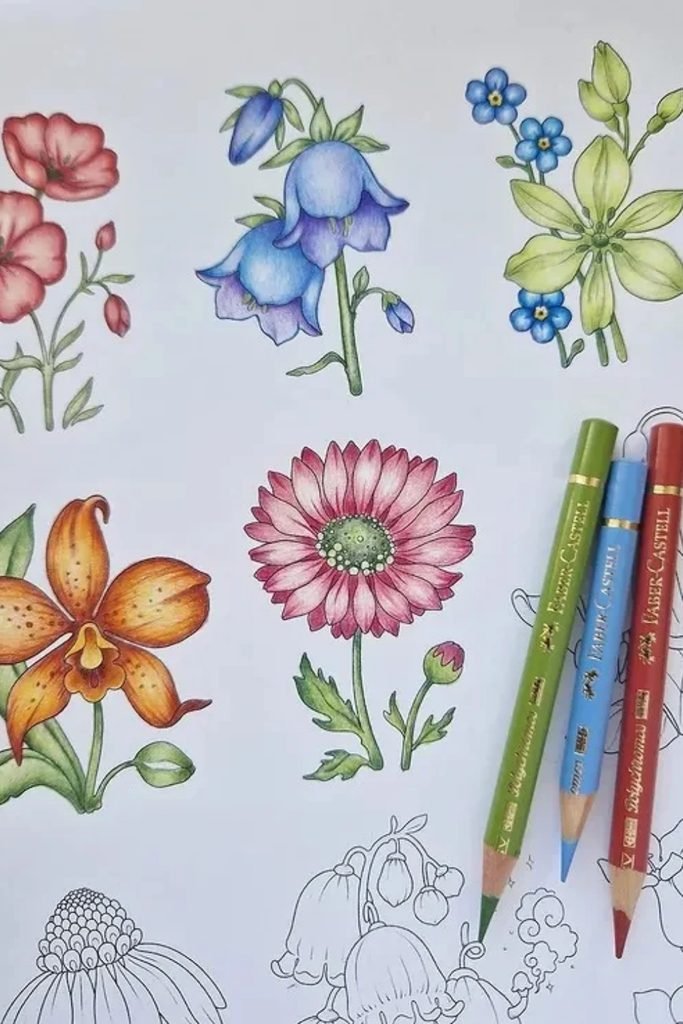
Print Multiple Pages at Once From Your Phone
Preparing several coloring sheets becomes easier when you organize your favorite designs into one PDF instead of opening separate images.
Use a suitable PDF creation app if needed, then arrange the pages in your preferred order before saving the combined document.
Open the PDF, choose your printer, and select the page range or number of copies according to your activity requirements.
Review the complete preview before printing, since different page sizes or orientations within the same document can sometimes produce unexpected layouts.
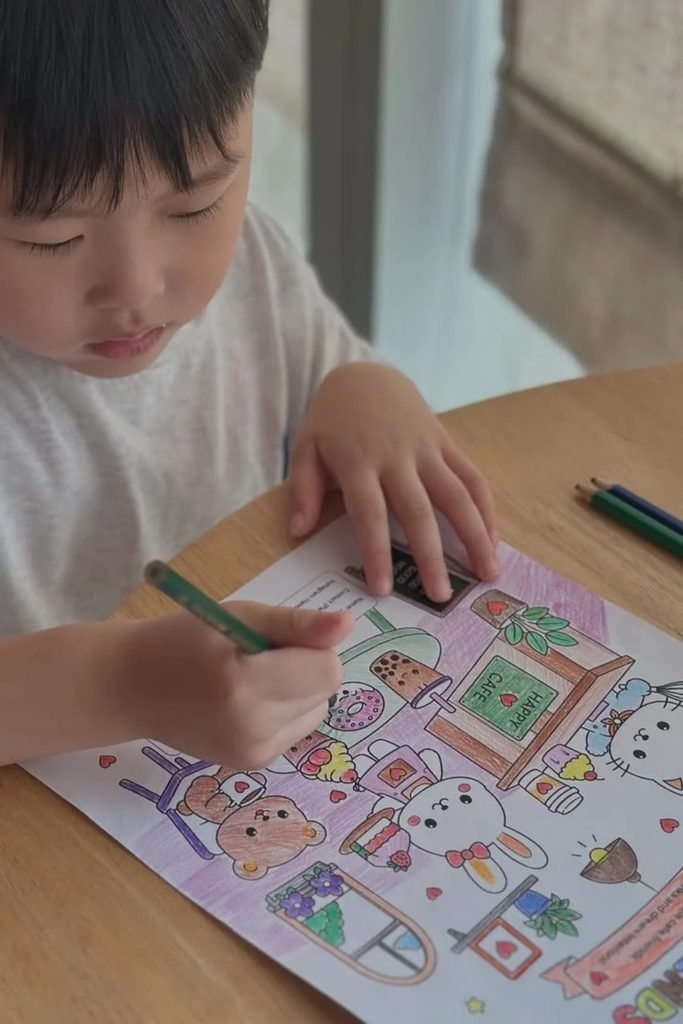
Common Problems When Printing
Blurry outlines often come from low-resolution downloads, so replace screenshots or small preview images with the original printable files whenever possible.
If your illustration gets cut off, confirm the paper size and try a fitting option that keeps everything within printable margins.
When the printer doesn’t appear, check its wireless connection, restart the devices if necessary, and verify the required mobile printing service.
For pages that appear too small, review the scaling settings and remove unnecessary image borders before attempting another print.
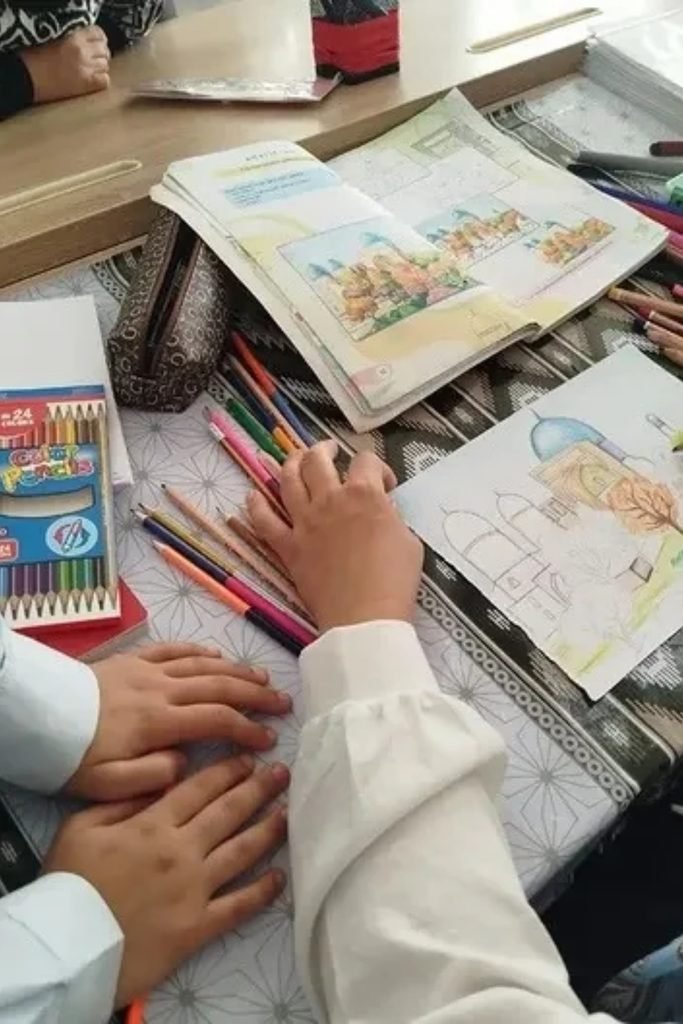
Conclusion
Printing coloring pages from your phone is an easy way to enjoy your favorite designs without needing a computer or complicated setup.
Whether you’re using Android or iPhone, downloading a clear image or PDF and choosing the correct printer settings makes everything easier.
Always check the print preview, use suitable paper, and keep your favorite coloring sheets organized for quick access whenever needed.
With these simple steps, you can print beautiful coloring pages at home and enjoy creative activities with your kids anytime.